How to find elevation on Google Maps
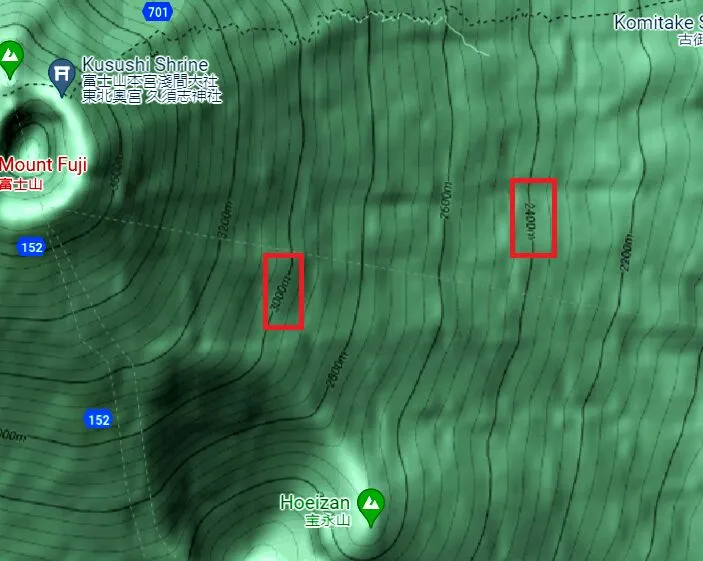
Google Maps shows elevation only as labelled contour lines in Terrain view, and mostly in hilly or mountain areas. Here is how to turn it on and read it.
Updated · By Ankit Kumar
Need one number for one spot instead? Find your current elevation or look up an address; both read the USGS value directly.
Steps
- Open Google Maps in a browser or the app. The steps are the same; the buttons look slightly different.
- Search for the place you want, or move the map there.
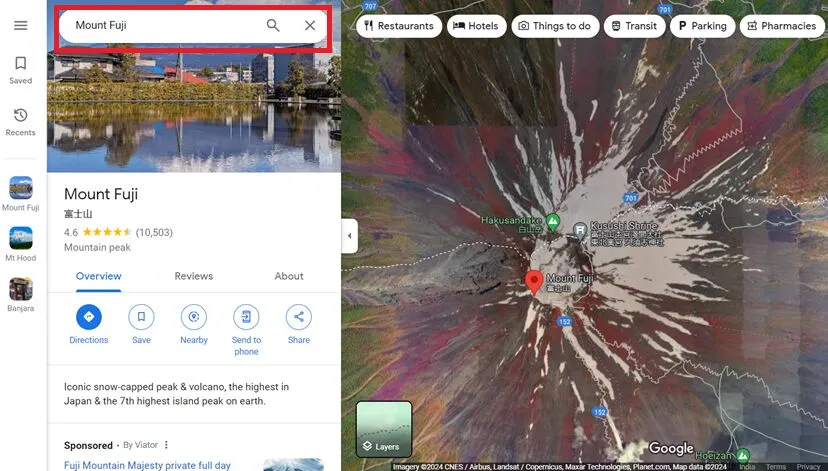
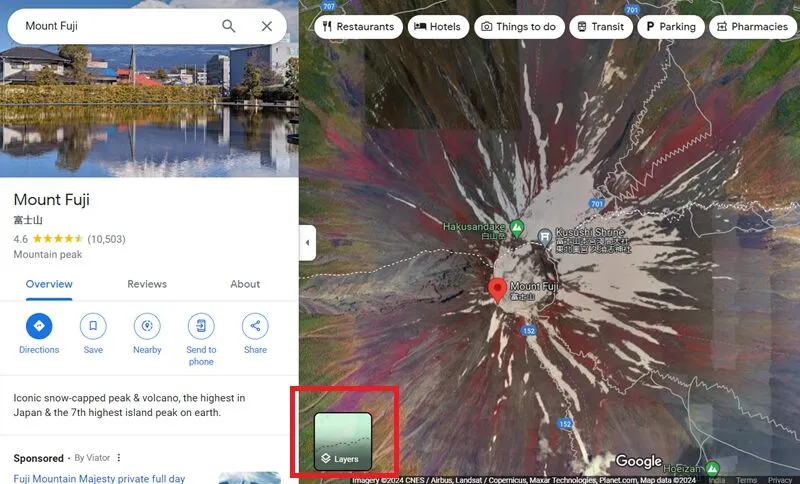
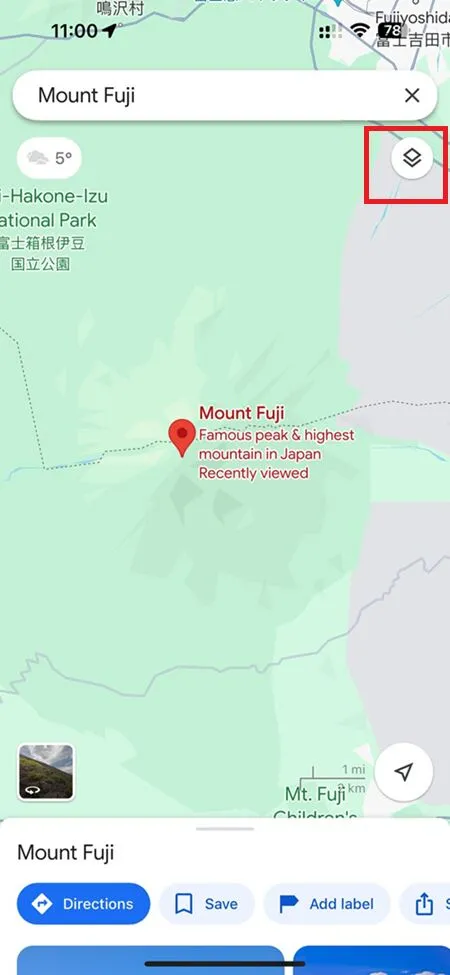
- Open Layers. On the web it is the square button in the lower-left corner; in the app it is the stacked-squares button near the top right.
- Choose Terrain.
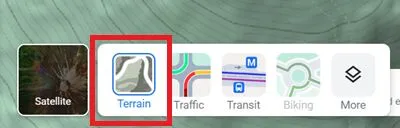
- If Terrain is already selected, make sure its toggle is on.
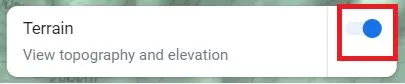
- Zoom in slowly. Contour lines with elevation labels appear at closer zoom levels over hilly ground.

Limits of Google Maps for elevation
- Labels appear mainly in hilly and mountain areas; flat towns often show none.
- You read the value between two contour lines, so you get a range, not an exact height.
- There is no point lookup, profile or export.
For a profile along a path, Google Earth Pro does better. For a single point, our elevation from coordinates tool gives the USGS value in feet and meters.
Screenshots taken in 2024; Google changes its menus from time to time.